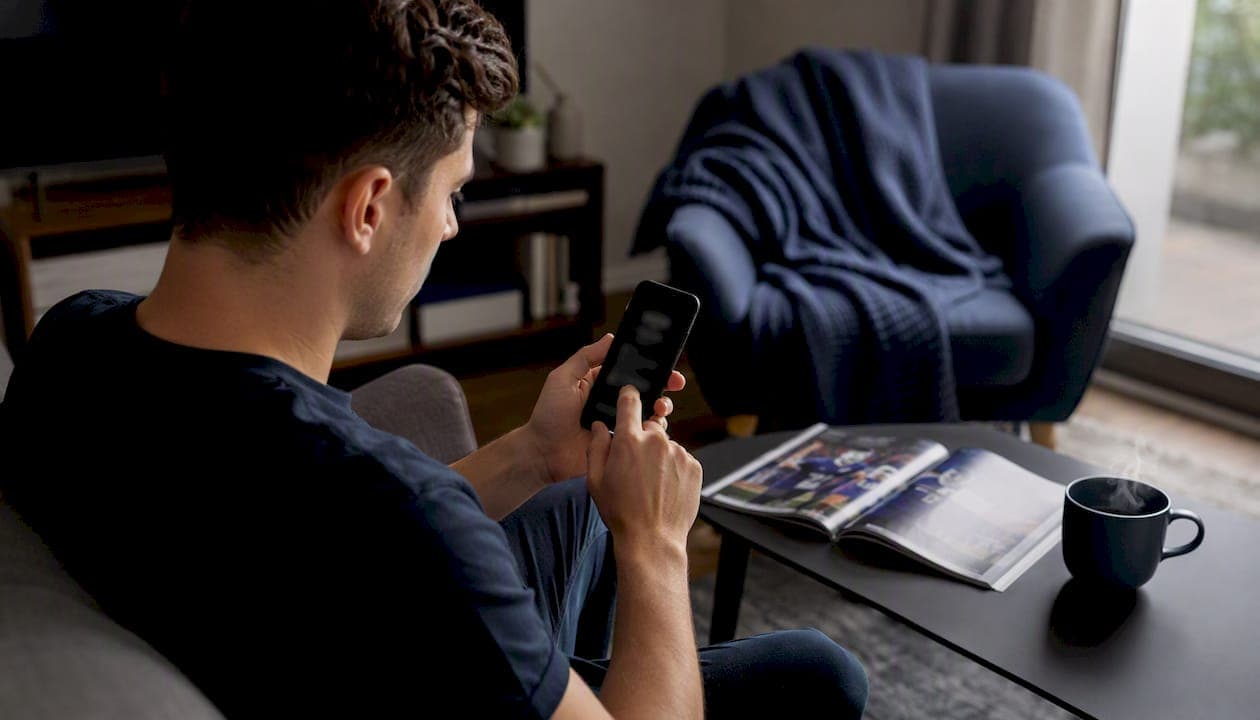
You can get instant live football notifications by downloading a scores app, following your teams, and turning on push and lock-screen alerts. That's it. No complicated setup, no waiting around refreshing a browser tab during a match.
Here's your three-step checklist to get live football notifications running in under five minutes:
- Open your app of choice and follow the teams or competitions you care about.
- Turn on push notifications and, on iOS, allow Live Activities when prompted.
- Set your event types (goals, cards, kickoff) so alerts don't flood your lock screen.
Expect alerts for goals, yellow and red cards, and halftime/full-time results right out of the gate. From there, you tune the details.
Key Takeaways
Reliable live football notifications come down to three things: following the right teams, granting the right permissions, and tuning event types before matchday, not during it.
| Point | Details |
|---|---|
| Follow teams first | Notifications only trigger after you've followed a team or competition inside the app. |
| Enable system permissions | Push notifications and background app refresh must both be allowed for alerts to arrive on time. |
| Customize event types | Filter alerts to goals, cards, or time windows to avoid getting buried on busy match days. |
| iOS and Android differ | iOS often auto-enables lock-screen Live Activities; Android requires manual permission approval. |
| Football Planet covers it all | Live scores, lock-screen alerts, and predictions live in one app at Football Planet's Live Scores page. |
Table of Contents
- How To Get Live Football Notifications Set Up Fast
- What Can You Customize In Your Football Match Alerts?
- Which Delivery Channel Gets You Football Score Updates Fastest?
- Setting Up Live Activities On IOS And Android
- How Do You Stop Notification Overload During A Busy Weekend?
- Why Are Your Football Game Notifications Late Or Missing?
- What Data Does An App Need To Send You Live Alerts?
- Why Football Planet Is Built For Fans Who Want It All In One Place
- Setting Up Alerts For A Six-Match Saturday
- Get Your Live Football Notifications Running Today
- Frequently Asked Questions
- Sources
How To Get Live Football Notifications Set Up Fast
Getting live football notifications working is a five-minute job if you follow the order that actually matters.
- Install or open your football app and sign in (or create a free account).
- Follow the specific teams and competitions you want alerts for. This step is what triggers the notification engine.
- Flip on the in-app "live match alerts" toggle. On most apps, this is buried in team or match settings, not the main notification menu.
- Confirm your phone's system permissions allow push notifications and background app refresh. Skip this and alerts arrive late or not at all.
Once you've followed a team, downloading a dedicated sports app and enabling system-level push is generally what unlocks both standard alerts and lock-screen Live Activities on newer phones.
Pro Tip: Test it before matchday. Follow a team with a match kicking off soon, then check whether a lock-screen alert or push banner shows up within a minute of kickoff. If nothing appears, your permissions are the problem, not the app.
- Push notifications: allowed in system settings
- Background app refresh: enabled
- Team follow status: active, not just "viewed"
What Can You Customize In Your Football Match Alerts?
Football notifications android and iOS setups both let you go far beyond "just tell me when something happens." You choose what actually counts as something.
Common event types you can toggle individually:
- Goals (for and against)
- Yellow and red cards
- Substitutions
- Halftime and full-time results
- Penalties awarded and converted
- Corners, shots on target, and possession thresholds (available on more advanced apps)
You can usually layer filters by team, by competition, and by time window, so you only get pinged during the last 15 minutes or during a specific half. Some rule-based systems let you combine conditions, like triggering an alert only when two goals happen inside the first 20 minutes, which turns a wall of notifications into a handful of genuinely useful ones.
Pro Tip: Start with a preset (goals plus red cards is a good default), then refine after one matchday. You'll quickly see which alerts you actually read and which ones you swipe away.
Which Delivery Channel Gets You Football Score Updates Fastest?
Not every alert needs to hit your lock screen instantly. Some are fine landing in your inbox an hour later.
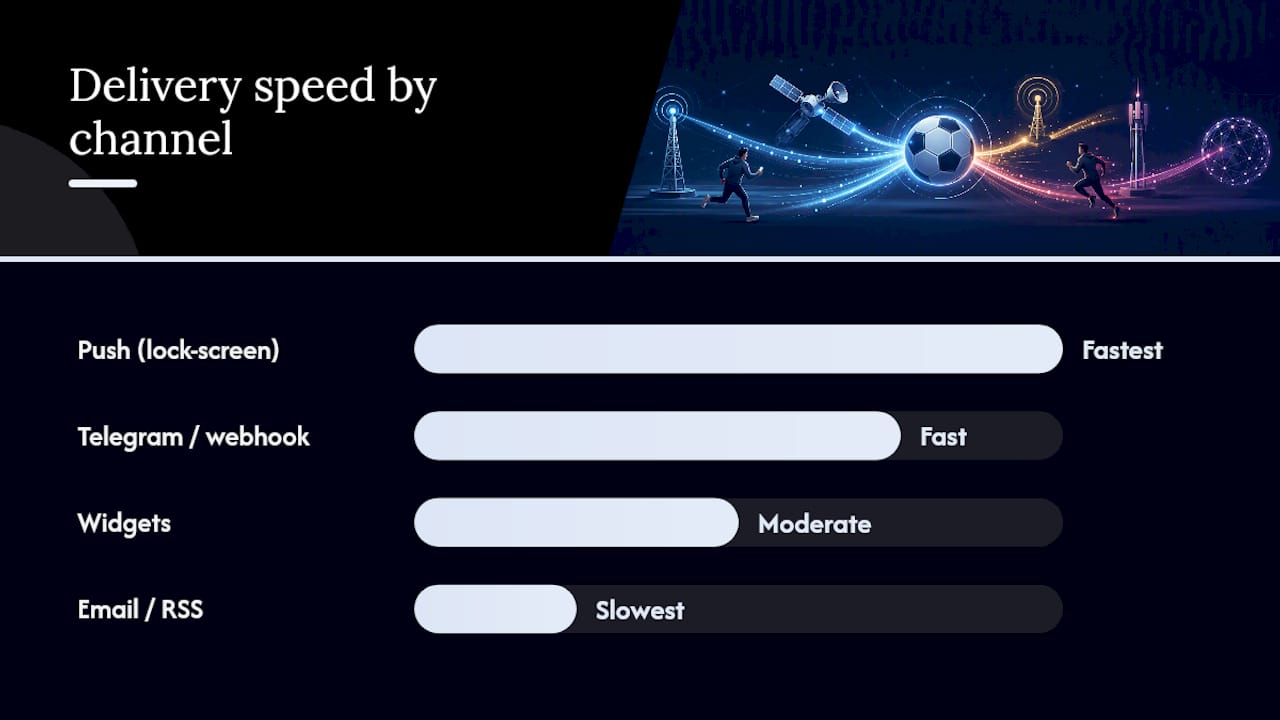
Live score platforms typically offer several delivery options, and choosing push, email, RSS, Telegram, or webhook delivery lets you match the channel to how urgent the information actually is.
- Push notifications and lock-screen alerts: fastest, most intrusive. Best for goals and cards.
- Widgets: glanceable, no unlock required, moderate intrusiveness.
- Email and RSS: slowest, least intrusive. Good for post-match summaries.
- Telegram or webhook feeds: fast and low-friction if you already live in a messaging app.
If you follow ten teams across a full Saturday slate, push-only for everything becomes noise fast. Reserve real-time push for your top two or three matches and let everything else land as a digest.
Setting Up Live Activities On IOS And Android
Football notifications iPhone users get behave differently than football notifications android users, and the gap matters more than most guides admit.
On iOS, lock-screen updates often appear automatically once you've followed a team, showing live score changes via Live Activities or Dynamic Island without unlocking your phone. Quick iOS checklist:
- Follow the team inside the app.
- Accept the Live Activities prompt if one appears.
- Check Settings > Face ID & Passcode or Settings > [App Name] if Live Activities don't show up after kickoff.
Android takes a more manual path. Android typically requires you to grant explicit notification permission after following a team, rather than opting you in automatically.
- Follow the team, then go to Settings > Apps > [App Name] > Notifications and confirm it's allowed.
- Check that battery optimization isn't restricting the app in the background.
- Some manufacturers (Samsung, Xiaomi) bury notification channels deeper than stock Android. Look under "App notifications" specifically, not general settings.
Apps that tie into Dynamic Island and Live Activities mean you can track match momentum without ever unlocking your screen, which is the whole appeal of doing this right.
How Do You Stop Notification Overload During A Busy Weekend?
Ten Premier League matches, three Champions League fixtures, and a cup replay in one weekend will bury your lock screen if you let it.
- Follow only the teams you genuinely care about, not every club in your favorite league.
- Limit event types to goals and red cards for teams you're casually tracking.
- Use time windows, so alerts for secondary matches only fire in the final 15 minutes when outcomes are actually decided.
- Prefer presets over building custom rules for every single team.
Separating broad breaking-news alerts from dedicated match alerts keeps transfer rumors and general football news from drowning out the alerts that actually matter during a live match.
Pro Tip: Use a mute or daily-snooze feature during windows you know you can't check your phone, like a work meeting or a flight. Unmute once you're free instead of getting buried in fifteen backlogged pings.
Why Are Your Football Game Notifications Late Or Missing?
Late alerts are almost always a permissions or connectivity problem, not an app failure.
Quick checklist before you troubleshoot further:
- Push notifications allowed in system settings
- Background app refresh turned on
- Follow status for the team still active (not accidentally unfollowed)
- Device time zone set correctly
Ordered diagnostic steps:
- Send yourself a test alert or wait for a low-stakes match to confirm delivery.
- Update the app. Outdated versions often lose notification permissions after an OS update.
- Check your phone's notification channel settings for that specific app.
- Restart your device. This clears stuck background processes more often than you'd expect.
Live alert systems generally aim for end-to-end delivery within 5 to 8 seconds of an on-pitch event, so anything beyond a minute or two usually points to a permission issue, not the underlying feed. If none of this fixes it, check the app's status page or contact support.
What Data Does An App Need To Send You Live Alerts?
Sending you a push notification requires very little personal information: your device's push token and the list of teams you follow.
- Push notification permission (required)
- Optional account data, like your followed teams list, to personalize what you receive
You don't need to hand over your name, location, or contact list for match alerts to work.
Pro Tip: If you want to limit what's shared, follow teams without linking a full account profile where the app allows it, and revoke notification permissions in system settings any time you want alerts to stop completely.
Why Football Planet Is Built For Fans Who Want It All In One Place
Football Planet gives you live scores, team-following, and lock-screen updates alongside the stuff that makes football fandom fun: predictions, video highlights, and a community that's actually into the sport.
- Follow teams and competitions, then layer in FP Predictor picks and check the video hub for goal replays the second an alert fires
Setup is the same pattern you've read through this whole guide: follow your teams, enable push, and let Football Planet's live coverage handle the rest. Whether you're tracking a title race through league tables or just want to know the second your club scores, the setup takes minutes and works the same way across Android and iOS.
Setting Up Alerts For A Six-Match Saturday
Last Saturday had six matches kicking off across two windows. I followed my club plus two rivals I had money riding on in a prediction game, set goals and red cards as the only triggers for the rivals, and left full event tracking (subs, corners, cards) on for my own team.
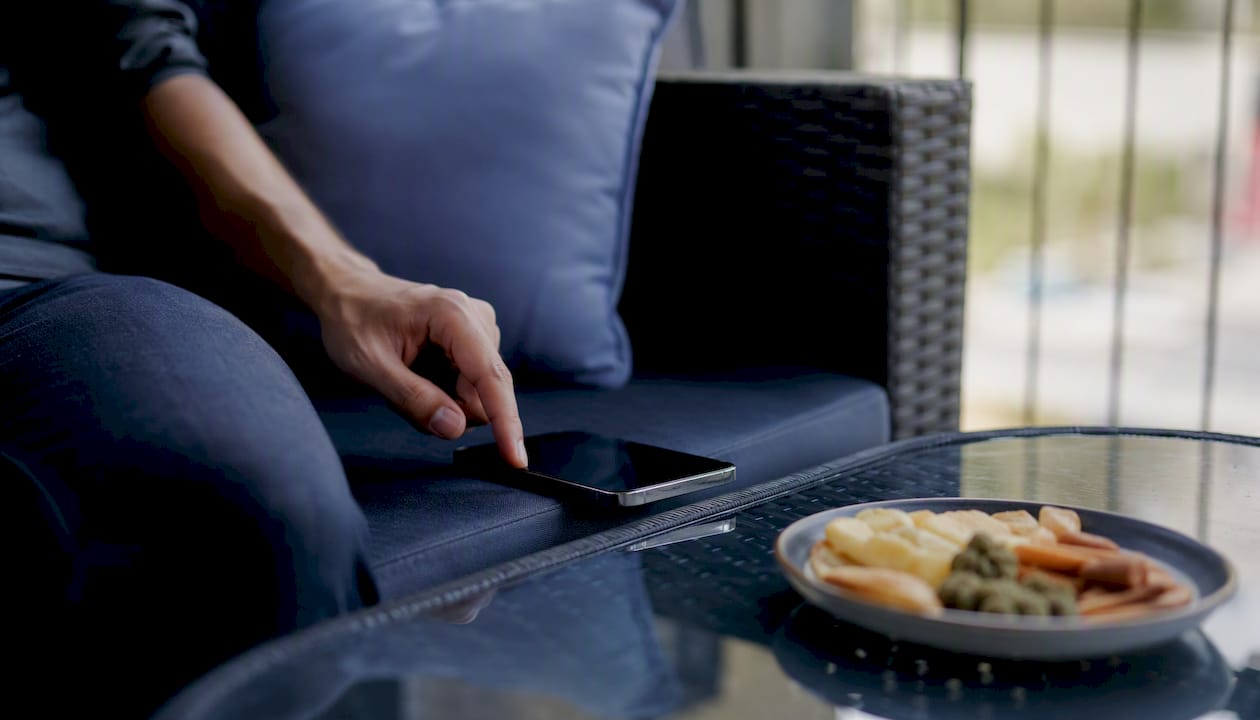
For the late kickoffs, I set a time-window rule starting at the 75th minute, since that's when results actually flip. A widget on my home screen covered the matches I didn't bother alerting for at all. Six matches, zero overload, zero missed goals.
Get Your Live Football Notifications Running Today
Football Planet's live scores hub is the fastest way to turn everything in this guide into a working setup, without juggling three different apps to cover goals, predictions, and highlights.
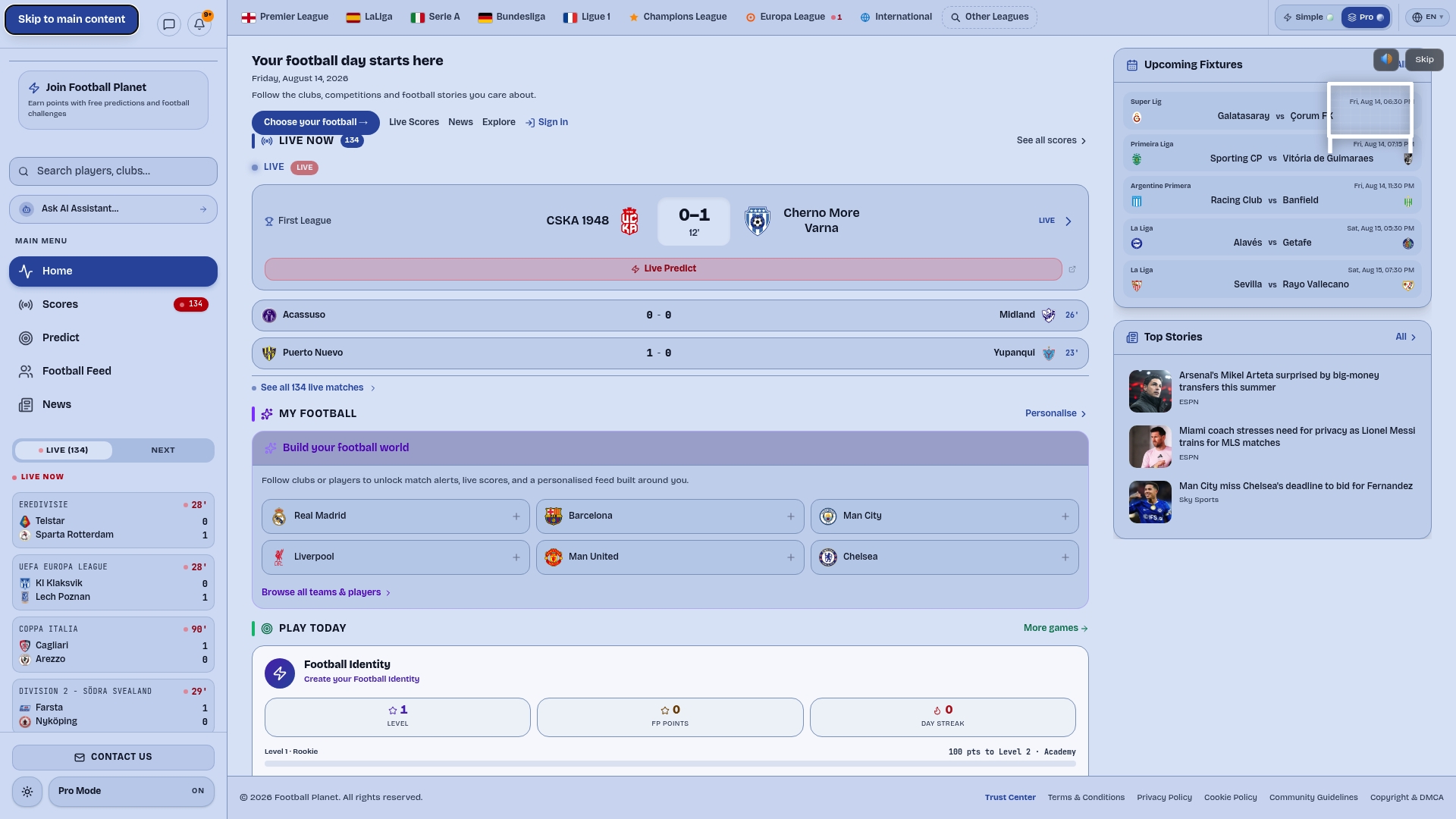
Two things make it worth starting here specifically:
- Lock-screen updates that work alongside your existing prediction picks, so you see the score and your FP Points progress in one place
- Customizable alerts by team and event type, without needing a separate app for video replays or news
Head to Football Planet's Live Scores page, follow your teams, and turn on alerts before your next match kicks off.
Frequently Asked Questions
How do I get football notifications on my phone? Download a scores app, follow your teams inside it, and enable push notifications in your phone's system settings. Both android and iPhone need this permission granted separately from the app's own follow feature.
Why am I not getting football score notifications? Check that push permissions are allowed, background app refresh is on, and you're still actively following the team. A recent app update can sometimes reset these settings.
Can I customize which football match alerts I receive? Yes. Most apps let you filter by event type (goals, cards, substitutions), by team or competition, and by time window, so you can limit alerts to the moments that matter most to you.
Do live football notifications drain my battery? Push notifications use minimal battery since they rely on background delivery rather than constant app refreshing. Heavy widget use or leaving Live Activities running across many simultaneous matches uses more, but it's still modest compared to active app use.
Sources
- 2026-27 football season: Live score updates with BBC Sport - BBC Sport
- Premier League 2026-27: Score updates on your lock screen - BBC Sport
- Sky Sports push notifications FAQ — how to receive the alerts you want